Auto-generate Flow Chart from Java/C++ Codes:

Raptor Flowchart Tutorial For Beginners

Showing posts with label virus. Show all posts

Friday, November 02, 2012

Simple Way To... Get Rid of TR/ATRAPS.Gen2 Completely – Remove TR/ATRAPS.Gen2 Manually

Cara Mudah Untuk... Nyahkan virus TR/ATRAPS.Gen2

Selepas terkena Smart HDD Virus, laptop saya terkena jangkitan TR/ATRAPS.Gen2 pula.

Saya terjumpa artikel di bawah. Tapi saya belum ikut lagi langkah2nya kerana saya mahu mencuba dengan SuperAntiSpyWare terlebih dahulu.


Setelah SuperAntiSpyWare menjalankan kerja-kerja nyah-virus dan laptop dihidupkan semula, Avira tetap mengeluarkan mesej tanda virus gagal dinyahkan seperti berikut:

Maknanya SuperAntiSpyWare pun tak mampu nak menentang TR/ATRAPS.Gen2

Seterusnya, saya cuba combofix pula (http://www.combofix.org/)


Lama juga Combofix bekerja. Laptop reboot dan Combofix terus bekerja dan memaparkan mesej melalui Tetingkap Konsol (Console Window). Akhirnya laptop reboot lagi sekali. Saya menunggu kalau-kalau Avira mengeluarkan mesej virus dikesan seperti di atas. Buat masa ini belum keluar.

Maka rumusannya, COMBOFIX adalah cara mudah untuk menyahkan TR/ATRAPS.Gen2!!


-------------------------------------------------------------------


How to Get Rid of TR/ATRAPS.Gen2 Completely – Remove TR/ATRAPS.Gen2 Manually

Avira keeps reporting TR/ATRAPS.Gen2 inside your computer? This virus always comes bundled with TR/Sirefef.AG.35 virus. Both of these Trojans are able to allow a remote attacker to gain control on the compromised computer. Remove it as quickly as you can once upon detection.

TR/ATRAPS.Gen2 Description

TR/ATRAPS.Gen2 is classified as a nasty Trojan infection that can penetrate into the corrupted PC without the computer user’s consent and awareness. After accessing the target computer, it disguises itself in Windows directory folder named System32 or System64 based on the type of the OS so that it is difficult for user to detect or remove this pesky Trojan by the current security tools. Most of time, users can discover this trojan by running Avira Antivirus, however, it can’t help to delete TR/ATRAPS.Gen2 completely as the virus always comes back again and again after each time rebooting the machine. Without a doubt, this trojan is a disaster for all the computers.
Once inside, it can deliver other malicious programs onto the infected computer system. Besides, it allows attackers to gain remote access and control to a victim’s PC, enabling them to steal any sensitive information such as passwords, usernames and login details found. Thus, your computer will be at risk and damaged easily. While you are surfing the web, it displays annoying ads and from that time, computer is slower and slower. That includes starting up, shutting down, playing games, and surfing the web. Therefore, you must remove such dangerous Trojan as soon as possible once found on your computer.

Trojan infected symptoms:

It can bypass the legit security tools and destroy your computer secretly.
It prevents you from opening some application because the files are corrupted.
It can make your browser redirected to all kinds of malicious websites.
It is able to allow remote hacker access the compromised system for illicit purpose.
Note: TR/ATRAPS.Gen2 is a highly dangerous Trojan created by the internet hackers and infects your computer through vulnerability or security program exploits. Once found, an immediate removal is needed. You can chat with an expert now to further know about this virus.

Cause:

TR/ATRAPS.Gen2 can infect via many ways:
From malicious drive-by-download scripts from corrupted porn and shareware / freeware websites.
Through spam email attachments, media downloads and social networks.
When clicking suspicious popups or malicious links.
Open unknown email or download media files that contain the activation code of the virus.
Note: No matter how does the virus access your PC, users should know that there are no tools can remove this virus automatically at this moment, it is suggested users not spend much time in downloading or paying any security software which claims can delete this stubborn virus. It is totally useless. To completely get rid of this pest, professional manual guide is needed.
Manual Removal Guides:

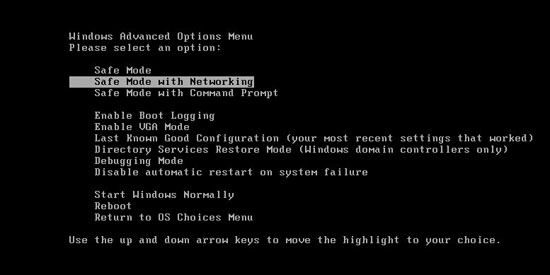
1. Reboot your computer to safe mode with networking. As your computer restarts but before Windows launches, tap “F8″ key constantly.

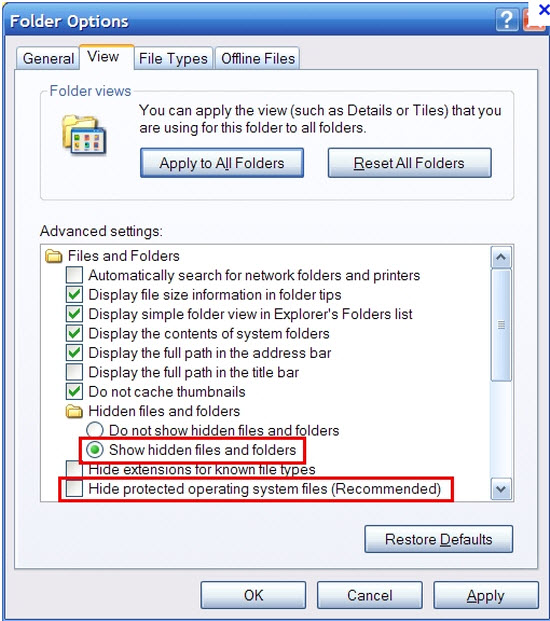
2. Show hidden files and folders.
Open Folder Options by clicking the Start button, clicking Control Panel, clicking Appearance and Personalization, and then clicking Folder Options.
Click the View tab.
Under Advanced settings, click Show hidden files and folders, uncheck Hide protected operating system files (Recommended) and then click OK.

3. Open Registry entries. Find out the malicious files and entries and then delete all.
Attention: Always be sure to back up your PC before making any changes.
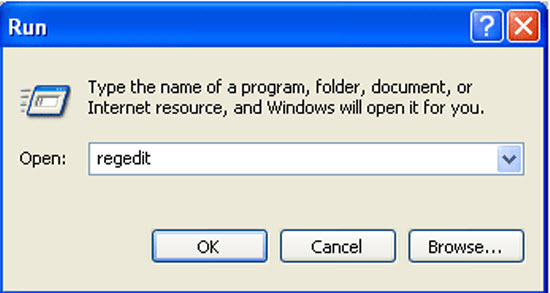
a. Press the “Start” button and then choose the option “Run”. In the “Open” field, type “regedit” and click the “OK” button.
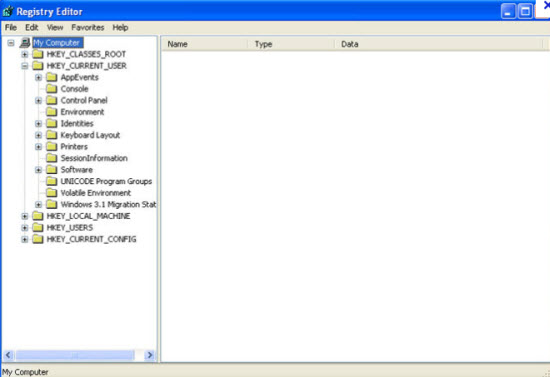
b. All malicious files and registry entries that should be deleted:
%System%\drivers\[RANDOM CHARACTERS].sys
%Temp%\[random]
C:\WINDOWS\system32\[random name].dll
HKEY_CURRENT_USER\Software\Microsoft\Windows\CurrentVersion\Policies\Explorer “NoDesktop” = ’1?
HKEY_CURRENT_USER\Software\Microsoft\Windows\CurrentVersion\Policies\System “DisableTaskMgr” = ’1?
HKEY_CURRENT_USER\Software\Microsoft\Windows\CurrentVersion\Run “[random].exe”
HKEY_CURRENT_USER\Software\Microsoft\Windows\CurrentVersion\Run “[random]”
HKEY_LOCAL_MACHINE\SOFTWARE\Microsoft\Windows\CurrentVersion\policies\system “DisableTaskMgr” = ’1?
HKEY_CURRENT_USER\Software\Microsoft\Internet Explorer\Download “CheckExeSignatures” = ‘no’

Video Shows You How to Safely Modify Windows Registry Editor:


Manual removal of TR/ATRAPS.Gen2 requires Expertise, Please take care before performing the steps.

Monday, October 29, 2012

Simple Way To... Uninstall Smart HDD Virus/Malware

Cara Mudah Untuk... Membuang Virus/Malware Smart HDD

Semasa memuatturun dokumen dari multiply akibat penutupan servisnya, laptop saya tiba-tiba berkelakuan ganjil. Muncul Tingkap Dialog Amaran mengatakan ada masalah dengan Hard Disk. Cuak juga rasanya. Laptop ini baru lima bulan dibeli. Takkanlah kualiti perkakasannya seteruk ini. Kemudiannya, Pak Cik Google memberithu ia adalah Smart HDD. Lega, at least I know that laptop is physically OK.

Virus ini menukarkan atribut bagi setiap fail direktori kepada hidden hingga akhirnya saya tak dapat lagi melihat nama-namanya di dalam Tingkap Windows Explorer. Lebih buruk lagi ia memadam kandungan Start Button. Lalu kosong dan tak dapat hendak mencapai apa-apa perisian ataupun fail.

Saya tahu fail/direktori sebenarnya tidak hilang tetapi cuma tersorok sahaja. Maka saya gunakan Perisian Portable 7Zip untuk meninjau fail/direktori ini (Saya hidupkan Windows melalui Safe Mode). Melalui tinjaun ini, semuanya didapati masih wujud. Dengan menggunakan 7Zip saya tukarkan buang atribut  hidden. Tapi simptom tidak akan selesai hinggalah Smart HDD dibuang sepenuhnya.

Saya dapati http://malwaretips.com/blogs/smart-hdd-removal-steps/ menyediakan panduan yang agak menyeluruh juga. Walaubagaimanapun, saya malas nak spend masa buat kerja-kerja ini. Saya pindahkan semua fail/direktori penting keluar, dan saya gunakan Recovery Software laptop saya untuk kembalikan laptop ke status asal ketika keluar dari kilang (Ini lagi mudah, tinggalkan aje buat sejam dua dan pergi diner dulu, balik nanti laptop dah ready :-P).

----------


Smart HDD Uninstall Instructions


Smart HDD is a malicious software that will display fake alerts, claiming that several hard drive errors were detected on your computer.The alerts are professional looking pop-ups and when you click on them, you’re advised to buy Smart HDD in order to fix this errors.
In reality, none of the reported issues are real, and are only used to scare you into buying Smart HDD and stealing your personal financial information.
If you’ve got a Smart HDD infection , you’ll be seeing this screens :
[Image: Smart-HDD.png]
Smart HDD will generate the following error messages:
Hard drive boot sector reading error
During I/O system initialization, the boot device driver might have failed to initialize the boot device. File system initialization might have failed because it did not recognize the data on the boot device.
System blocks were not found
This has most likely occurred because of hard disk failure.
This may also lead to a potential loss of data.
Error 0×00000024 – NTFS_FILE_SYSTEM
The Stop 0×24 message indicates that a problems occurred within Ntfs.sys, the driver file that allows the system to read and write to NTFS file system drives. It is most often related to hard drive errors.
Error 0×00000078 – INACCESSIBLE_BOOT_DEVICE
The Stop 0×78 message indicates that Windows has lost access to the system partition or boot volume during the startup process. During I/O system initialization, the boot device driver might have failed to initialize the boot device (typically a hard disk). Repartitioning the system partition or installing a new SATA/RAID adapter or disk controller might also induce this error.
The DRM attribute value is too small before disk scan
Drive Reliability Monitor (a system or monitoring the reliability of disc drive functioning). The malfunction counter built into the disk drive shows excessive number of malfunctions. The storage device needs to be replaced.
Error 0×00000050 – PAGE_FAULT_IN_NONPAGED_AREA
The Stop 0×50 message indicates that requested data was not in memory. The system generates an exception error when using a reference to an invalid system memory address.
Error 0x0000002E – DATA_BUS_ERROR
The Stop 0x2E message is typically caused by failed or defective RAM (including motherboard, Level 2 cache, or video memory), incompatible or mismatched memory hardware, or when a device driver attempts to access an address in the 0x8xxxxxxx range that does not exist (does not map to a physical address).

Registration codes for Smart HDD

As an optional step,you can use the following license key to register Smart HDD and stop the fake alerts.
15801587234612645205224631045976
Please keep in mind that entering the above registration code will NOT remove Smart HDD from your computer , instead it will just stop the fake alerts so that you’ll be able to complete our removal guide more easily.
We strongly advise you to follow our Smart HDD removal guide and ignore any alerts that this malicious software might generate.Under no circumstance should you buy this rogue security software as this could lead to identity theft.

Removal guide for Smart HDD

STEP 1 : Start your computer in Safe Mode with Networking

  1. Remove all floppy disks, CDs, and DVDs from your computer, and then restart your computer.
  2. Press and hold the F8 key as your computer restarts.Please keep in mind that you need to press the F8 key before the Windows  start-up logo appears.
  3. On the Advanced Boot Options screen, use the arrow keys to highlight Safe Mode with Networking , and then press ENTER.
    [Image: Safemode.jpg]
  4. Log on to your computer with a user account that has administrator rights

STEP 2: Remove Smart HDD malicious proxy server

Smart HDD may add a proxy server which prevents the user from accessing the internet,follow the below instructions to remove the proxy.
  1. Start Internet Explorer [Image: Smart HDD- IE] and if you are using Internet Explorer 9 ,click on the gear icon   [Image: IE gear icon] (Tools for Internet Explorer 8 users) ,then select Internet Options.
    [Image: Internet-options-IE.png]
  2. Go to the tab Connections.At the bottom, click on LAN settings.
    [Image: Remove-proxy-server2.png]
  3. Uncheck the option Use a proxy server for your LAN. This should remove the malicious proxy server and allow you to use the internet again.
    [Image: Remove-proxy-server3.png]
If you are a Firefox users, go to Firefox(upper left corner) → Options → Advanced tab → Network → Settings → Select No Proxy

STEP 3: Run RKill to terminate known malware processes associated with Smart HDD.

RKill is a program that attempts to terminate any malicious processes associated with Smart HDD ,so that your normal security software can then run and clean your computer of infections.
As RKill only terminates a program’s running process, and does not delete any files, after running it you should not reboot your computer as any malware processes that are configured to start automatically will just be started again.
  1. While your computer is in Safe Mode with Networking ,please download the latest official version of RKill.
    [Image: download-rkill.png
  2. Double-click on the RKill iconin order to automatically attempt to stop any processes associated with Smart HDD.
    [Image: run-rkill-1.png]
  3. RKill will now start working in the background, please be patient while the program looks for various malware programs and tries to terminate them.
    [Image: run-rkill-2.png]
    IF you receive a message that RKill is an infection, that is a fake warning given by the rogue. As a possible solution we advise you to leave the warning on the screen and then try to run RKill again.Run RKill until the fake program is not visible but not more than ten times.
    IF you continue having problems running RKill, you can download the other renamed versions of RKill from here.
  4. When Rkill has completed its task, it will generate a log. You can thenproceed with the rest of the guide.
    [Image: Smart HDD rkill3.jpg]
WARNING: Do not reboot your computer after running RKill as the malware process will start again , preventing you from properly performing the next step.

STEP 4: Remove Smart HDD malicious files withMalwarebytes Anti-Malware FREE

  1. Please download the latest official version of Malwarebytes Anti-Malware FREE.
    download Malwarebytes
  2. Install Malwarebytes’ Anti-Malware by double clicking on mbam-setup.
    [Image: malwarebytes-installer.png]
  3. When the installation begins, keep following the prompts in order to continue with the installation process. Do not make any changes to default settings and when the program has finished installing, make sure you leave both the Update Malwarebytes’ Anti-Malware and Launch Malwarebytes’ Anti-Malware checked. Then click on the Finishbutton. If Malwarebytes’ prompts you to reboot, please do not do so.
    [Image: install-malwarebytes.png]
  4. Malwarebytes Anti-Malware will now start and you’ll be prompted to start a trial period , please select ‘Decline‘ as we just want to use the on-demand scanner.
    [Image: decline-trial-malwarebytes.png]
  5. On the Scanner tab,please select Perform full scan and then click on theScan button to start scanning your computer for any possible infections.
    [Image: malwarebytes-full-system-scan.png]
  6. Malwarebytes’ Anti-Malware will now start scanning your computer for Smart HDD malicious files as shown below.
    [Image: malwarebytes-scanning.png]
  7. When the scan is finished a message box will appear, click OK to continue.
    [Image: malwarebytes-scan-finish.png]
  8. You will now be presented with a screen showing you the malware infections that Malwarebytes’ Anti-Malware has detected.Please note that the infections found may be different than what is shown in the image.Make sure that everything is Checked (ticked) and click on the Remove Selected button.
    [Image: malwarebytes-scan-results.png]
  9. Malwarebytes’ Anti-Malware will now start removing the malicious files.If during the removal process Malwarebytes will display a message stating that it needs to reboot, please allow this request.
    [Image: malwarebytes-reboot-prompt.png]

STEP 5: Double check your system for any left over infections with HitmanPro

  1. This step can be performed in Normal Mode ,so please download the latest official version of HitmanPro.
    [Image: Download Hitman Pro]
  2. Double click on the previously downloaded file to start the HitmanPro installation.
    [Image: hitmanpro-icon.png]
    NOTE : If you have problems starting HitmanPro, use the “Force Breach” mode. Hold down the left CTRL-key when you start HitmanPro and all non-essential processes are terminated, including the malware process. (How to start HitmanPro in Force Breach mode – Video)
  3. Click on Next to install HitmanPro on your system.
    [Image: installing-hitmanpro.png]
  4. The setup screen is displayed, from which you can decide whether you wish to install HitmanPro on your machine or just perform a one-time scan, select a option then click on Next to start a system scan.
    [Image: hitmanpro-setup-options.png]
  5. HitmanPro will start scanning your system for malicious files. Depending on the the size of your hard drive, and the performance of your computer, this step will take several minutes.
    [Image: hitmanpro-scanning.png]
  6. Once the scan is complete,a screen displaying all the malicious files that the program found will be shown as seen in the image below.After reviewing each malicious object click Next.
    [Image: hitmanpro-scan-results.png]
  7. Click Activate free license to start the free 30 days trial and remove the malicious files.
    [Image: hitmanpro-activation.png]
  8. HitmanPro will now start removing the infected objects, and in some instances, may suggest a reboot in order to completely remove the malware from your system. In this scenario, always confirm the reboot action to be on the safe side.

STEP 6: Unhide your files and folders

Smart HDD modifies your file system in such a way that all files and folders become hidden, to restore the default settings , you’ll need to run the below program.
  1. Please download Tweaking.com-UnhideNonSystemFiles.exe to unhide your files and folders.
    [Image: download-unhide.png]
  2. Double click on Tweaking.com-UnhideNonSystemFiles.exe and when the utility starts click on the ‘Start’ button to unhide your files.
    [Image: unhide-icon.png]

STEP 7 : Restore your shortcuts and remove any left over malicious registry keys

Smart HDD has moved your shortcuts files in the Temporary Internet folder and added some malicious registry keys to your Windows installation , to restore your files we will need to perform a scan with RogueKiller.
  1. Please download the latest official version of RogueKiller.
    download RogueKiller
  2. Double click on RogueKiller.exe to start this utility and then wait for the Prescan to complete.This should take only a few seconds and then you canclick the Start button to perform a system scan.
    [Image: roguekiller-1.png]
  3. After the scan has completed, press the Delete button to remove any malicious registry keys.
    [Image: roguekiller-2.png]
  4. Next we will need to restore your shortcuts, so click on the ShortcutsFix button and allow the program to run.
    [Image: roguekiller-1.png]

STEP 8: Get your desktop look back!

Smart HDD changes your desktop background to a solid black color,to change it back to default one follow the below instruction.
    • Windows XP : Click on the Start button and then select Control Panel. When the Control Panel opens, please click on the Display icon. From this screen you can now change your Theme and desktop background.
    • Windows 7 and Vista : Click on the Start button and then select Control Panel. When the Control Panel opens, please click on the Appearance and Personalization category. Then select Change the Theme or Change Desktop Background to revert back to your original Theme and colors.

STEP 9: Restore your pinned task bar shortcuts , star menu items and other missing icons.

Smart HDD has moved your saved pinned task bar items and other shortcuts into the temporary internet folder, so now we will have to copy them back to their original location.
1. Enable on your system the ‘Show hidden files, folders, and drives’ option.
  • If you are using Windows 7 or Vista,go to Computer → Click on theOrganize tab → select Folder and search options.
  • If you are using Windows XP,go to My Computer → Tools tab → selectFolder Options.
    [Image: viewhiddenfiles.png]
In the new window that appeared select the View tab and choose the option Show hidden files, folders, and drives then click Apply and OK.
[Image: Show hidden files, folders, and drives.png]
2.This rogue software has moved your shorcuts in a folder in the Temporary Internet files called smtmp, so now we will need to copy them back to their original locations.
  • Windows 7 and Vista users can find the smtmp folder in C:\Users\[Your Username]\AppData\Local\Temp
  • Windows XP users can find smtmp folder the in : C:\DOCUMENTS AND SETTINGS\[Your Username]\LOCAL SETTINGS\Temp
[Image: Show hidden files, folders, and drives.png]
The smtmp folder will contain 4 folders and you’ll need to copy the content of this folders back to their original locations.
  • Copy the content from %Temp%\smtmp\1\ to:
    Windows XP: C:\Documents and Settings\All Users\Start Menu
    Windows Vista and Windows 7: C:\ProgramData\Microsoft\Windows\Start Menu
  • Copy the content from %Temp%\smtmp\2\ to:
    Windows XP: C:\Documents and Settings\[your username]\Application Data\Microsoft\Internet Explorer\Quick Launch\
    Windows Vista and Windows 7: C:\Users\[your username]\AppData\Roaming\Microsoft\Internet Explorer\Quick Launch\
  • Copy the content from %Temp%\smtmp\3\ to:
    Windows XP: It does not exist on Windows  XP.
    Windows Vista and Windows 7 C:\Users\[your username]\AppData\Roaming\Microsoft\Internet Explorer\Quick Launch\User Pinned\TaskBar
  • Copy the content from %Temp%\smtmp\4\ to:
    Windows XP : C:\Documents and Settings\All Users\Desktop
    Windows Vista and Windows 7: C:\Users\Public\Desktop
If you are still experiencing problems while trying to remove Smart HDD from your machine, please start a new thread in our Malware Removal Assistance forum.

Saturday, January 21, 2012

Maksud Phishing

(tajuk berkaitan: erti phishing, apa itu phishing, definisi phishing, definasi phishing)

Phishing adalah apa jua percubaan untuk mencuri maklumat seseorang yang boleh dilakukan samada melalui telefon, email, chat atau faksimili. Melalui kaedah kejuruteraan sosial (english:social engineering), pelaku phishing berpura-pura seperti mahu mendapatkan maklumat untuk sesuatu urusan yang sah. Selalunya mangsa yang tertipu adalah mereka yang naif (english:naive) tentang jenayah ini.

Maksud Spam

(tajuk berkaitan: erti spam, apa itu spam, definisi spam, definasi spam)

Spam adalah apa jua komunikasi yang tidak dikehendaki oleh penerimanya. Ia meliputi pelbagai aktiviti antaranya email dan sms berisi maklumat yang tidak diminta dan tidak diperlukan oleh penerimanya. Tujuan spam samada sebagai taktik pemasaran atau taktik mengumpan si penerima.

Maksud Spyware

(tajuk berkaitan: erti spyware, apa itu spyware, definisi spyware, definasi spyware)

Spyware (melayu:Perisian Pengintip) hampir sama dengan Adware (melayu:Perisian Iklan) yang dipasang pada sesebuah komputer tanpa keizinan pemiliknya dan mengintip aktiviti perkomputeran atau maklumat yang tersimpan. Spyware boleh menjejaki maklumat peribadi (contoh:nama,alamat), demografi (contoh:umur,jantina) dan psikososial (contoh:pendirian terhadap sesuatu isu).

Maksud Rootkits

(tajuk berkaitan: erti rootkits, apa itu rootkits, definasi rootkits, definisi rootkits)

Rootkit adalah teknologi yang digunakan oleh malware atauy ancaman perisian yang lain untuk mengelakkan diri dari dikesan dan dibuang oleh perisian anti virus.

Secara amnya, rootkits menggunakan pelbagai cara untuk mengubahsuai boot sctor, kod kernel, atau perisian aplikasi. Pengubahsuaian ini membolehkan ia "tersangkut" (english:hook) di mana-mana sahaja dalam sistem komputer dan selanjutnya kekal diam di dalam Perisian Pelayar atau Pendaftar Tetingkap (english:windows registry)

Maksud Virus


(tajuk berkaitan: Erti Virus, Apa itu Virus, Definasi Virus)

Virus komputer adalah Perisian atau Program yang mempunyai keupayaan unik untuk meniru, dan seperti virus biologi, boleh merebak dengan cepat. Walaupun sesetengah virus hanya mengganggu dengan memaparkan mesej atau imej yang tidak dikehendaki, sesetengah yang lain pula boleh merosakkan fail, perkakasan komputer (cakera keras, English: hardisk) dan lain-lain lagi. Meskipun ada virus yang tidak mendatangkan bahaya yang besar, ia tetap mengganggu ruangan ingatan dan simpanan komputer, sekaligus merendahkan prestasi komputer.

Maksud Browser Hijackers (Perampas Pelayar)

(tajuk berkaitan: Erti Browser Hijackers, Apa itu Browser Hijackers, Definasi Browser Hijackers)

Perampas (Perisian ) Pelayar (Web) melencongkan laman rumah (English:Home Page) , Laman Carian (English:Search Page) atau Laman Web yang lain ke lokasi yang ditetapkan oleh Perampas Pelayar (atau pencipta Perampas Pelayar).

Antara tujuan pelencongan ini dibuat adalah:
1) untuk meningkatkan trafik ke lokasi tertentu.
2) mendedahkan pengguna kepada perisian berbahaya
atau lain-lain tujuan yang tidak baik.

Selalunya sifat Perampas Pelayar sama dengan Perisian Pengintip (English:Spyware)

Thursday, January 19, 2012

Virus Koobface tumpas

(tajuk berkaitan: Virus infections stop as Facebook names suspects, Jangkitan virus berhenti setelah Facebook menamakan pihak yang disyaki, Koobface)


REUTERS - Salah satu daripada sumber-sumber yang biasa melakukan pencerobohan komputer telah berhenti menjangkiti mesin baru selepas penyelidik keselamatan yang bekerja dengan Facebook (Apa itu Facebook?) menerbitkan nama-nama lima ringleaders yang disyaki.

Selepas lebih dua tahun bekerja, sepasang penyelidik pada hari Selasa menerbitkan nama, nama samaran dan gambar-gambar kumpulan mereka yang dituduh menjalankan aktiviti jenayah yang dikenali sebagai Koobface (Apa itu Koobface?) yang telah disasarkan terutamanya di Facebook setelah ia muncul pada tahun 2008.

Penyelidik Keselamatan Jerman Jan Droemer dan Dirk Kollberg berkata bahawa pelayan yang menguruskan operasi Koobface berhenti bertindak balas pada pagi Selasa selepas mereka mengeluarkan laporan yang mendalam melalui majikan mereka, Kollberg UK Sophos, pembuat perisian anti-virus.

Beberapa komputer yang digunakan untuk mengawal Koobface sebelum ini telah dimatikan dan ia tidak merebak melalui sambungan Facebook sejak awal tahun lepas.

---

REUTERS - One of the most common sources of computer intrusions has stopped infecting new machines after security researchers working with Facebook released the names of five suspected ringleaders.

After more than two years of work, a pair of researchers on Tuesday published the names, aliases and photographs of a gang they accused of running a criminal enterprise known as Koobface that had primarily targeted Facebook after it cropped up in 2008.

German security researchers Jan Droemer and Dirk Kollberg said that servers that ran the Koobface operation stopped responding on Tuesday morning after they released an in-depth report via Kollberg's employer, the UK anti-virus software maker Sophos.

Some computers used to control Koobface had previously been disabled and it had not spread through Facebook connections since early last year.

But until the new disclosures, the Koobface gang had continued to target other social networks as a long-running FBI probe failed to result in arrests in Russia.

Koobface spread primarily through captured social networking accounts that prompted friends to install software to view a video. Initially content with small-scale advertising fraud, the group had also begun to distribute more pernicious software, including the Zeus trojans for bank-account theft, according to another researcher collaborating with Facebook, Gary Warner of the University of Alabama-Birmingham.

Kaspersky Lab, a large security software company, said its database showed that the Koobface virus had afflicted between 400,000 and 800,000 computers during its heyday in 2010.

"The thing that we are most excited about is that the botnet is down," said Facebook security official Ryan McGeehan. "Our decision to become transparent about this has had a 24-hour impact. Only time will tell if it's permanent but it was certainly effective."

Droemer and Kollberg said that they had planned to hold off on publishing their data until law enforcement had captured the suspects. They released it earlier, with Facebook's blessing, after one of those suspects, who goes by the alias "Krotreal," was named last week by another researcher.

Facebook Chief Security Officer Joe Sullivan said he had endorsed the release because he felt the exposure might disrupt the group.

Indeed, those identified have erased social networking profiles cited by the researchers, and many of the phone numbers have been reassigned.

"Krotreal," for example, renamed his account on the Russian social networking site twice, then deleted it altogether, along with his Twitter feed and LiveJournal accounts.

None of the five alleged members of the hacking group could immediately be traced to the reported office addresses or phone numbers in St Petersburg, Russia's second-largest city.

At the MobSoft address named by Sophos, a Reuters reporter found a dilapidated building that once belonged to a company controlling seaport currency trade in the Soviet Union. Today the building, near a port docking station, is mostly occupied by shipping companies. An employee of one of the firms told Reuters he had never heard of a firm by the name of MobSoft.

"Our company has been renting an office here for three years, but there is no firm named MobSoft here and there has never been one," he said. Neither the building's concierge nor its manager, who had been in her job for the past 15 years, knew about MobSoft or the suspected hacker group.

The legal address for MobSoft found in online directories, and in the SKRIN stock exchange companies' database, led Reuters to an apartment complex a few blocks away from the Mariinsky theatre, whose ballet troupe ranks with Moscow's Bolshoi as Russia's most prestigious.

There was no response when the Reuters reporter rang the bell and knocked on the old wooden rusty-colored door.

Calls to the numbers provided in the Sophos reports yielded no valid leads. One of the names listed under the telephone numbers matched that in the report. But most did not.

At the official MobSoft number, Reuters reached a man calming a crying baby who said strangers had started calling him recently with questions about Koobface and MobSoft. He said he had not heard of either.

The two German researchers said they suspected that the hackers had been working out of a third location in St. Petersburg.

NO INVESTIGATION REQUESTED

Russia's anti-cybercrime unit, the Interior Ministry's K Directorate, said it has yet to investigate the matter because it has not been asked to.

"An official request needs to be filed to the K Directorate first, and when it's filed, we will certainly investigate and work on it," said Larisa Zhukova, a representative at the cyber unit, told Reuters.

"The request must come from the victim, that is Facebook. Because anyone can say or write anything, but it is all unfounded so far," she added.

If submitted, a request would undergo a 30-day review, followed by an initial check.

"Even if it turns into a criminal case, the investigative unit will decide on possible charges. It is hard to hypothesize on a possible sentence right now," she said, adding she had no information on whether the operational staff of the investigative unit knew about the situation.

A spokesman for the FBI did not respond to a request for comment.

Members of Facebook's security staff declined to comment on their discussions with law enforcement officials. Others working with Facebook said that the MVD, or Interior Ministry, had indeed been involved, with little visible progress.

"I like that we're getting the dialogue about the challenges of cross-border enforcement," Sullivan, the Facebook security officer, said. "Ultimately, the goal here is to have an impact. As a security team, we don't have the luxury that every case ends in an arrest."

Apa itu Virus Koobface?


Koobface juga disebut sebagai Cacing Facebook, Cacing Myspace atau Virus Facebook adalah sejenis Cacing (English:Worm) yang tersebar melalui mesej di jaringan sosial seperti Facebook dan MySpace. Cacing ini mampu menyusup ke PC anda dan kemudian membiak (menggandakan diri, English:replicate) dan menjangkiti semua fail yang ada dalam harddisk.

Beza antara cacing dan virus, jika virus biasanya akan menempel di fail-fail yang ada dalam computer anda, Cacing pula akan menghapuskan fail yang ada dan membuat fail tiruan yang sudah dijangkitinya. Hebatnya lagi Cacing ini mampu mengirim email automatik dari PC yang sudah dijangkitinya ke PC lainnya untuk menyebarkan diri.

Bagaimana Cacing bekerja?

Biasanya Cacing ini tersebar melalui mesej menggunakan akaun kenalan anda di facebook, seolah-olah kenalan itu sedang mengirimkan pautan foto atau video. Kadang-kadang disertai ayat-ayat yang memerangkap seperti “you look funny in this video” atau “you look so stupid in this pic“. Atau berisi nama dan isu-isu orang terkenal lagi hangat. Misalnya yang terbaru adalah penyebaran pautan video bernama Obama atau yang berbau pornografi. Apabila anda klik pautan untuk membuka video yang diterima, sebuah player video akan muncul tapi video tidak dimainkan sebaliknya anda diminta untuk memuatturun codec atau melakukan update video player. Ketika anda mengikuti arahan itu (muatturun atau update), sebuah file Cacing atau Trojan yang bernama codecsetup.exe atau tinyproxy.exe akan diaktifkan. File inilah yang kemudiannya menyerang dan menjangkiti seluruh fail dan sistem di komputer anda.

Contoh - contoh "umpan" penyebaran Virus Koobface:

  • Pautan pada Mesej

  • Pautan dengan kata kunci dan gambar yang "Hangat" (English:"Hot!")

  • Pautan untuk menaiktaraf "Video Player"

Cara Membuang Koobface.

Jika komputer anda sudah ditembusi koobface, cara paling mudah untuk membuang Cacing ini adalah dengan menggunakan Perisian Anti Pengintip (English: anti spyware). Jangan lupa untuk naiktaraf (update) Perisian Anti Pengintip anda juga kerana supaya lebih effektif.


Topik berkaitan: